
Image tools6 min read
Lossless or lossy: how image compression works
What happens when JPEG, PNG, WebP and AVIF compress, why text and edges suffer, why image size counts for more, and why originals are worth keeping.
A bed and breakfast in Engelberg is renewing its website. The owner has lovely photos: the rooms, the breakfast, the Titlis in the evening light. Each photo is around eight megabytes. The new site loads painfully slowly on a phone, and the logo, which they saved as a JPG, suddenly has blurred, blotchy edges.
Both have to do with compression, and both can be solved once you know what actually happens when an image is compressed.
Two ways to make an image smaller
Image formats save space in two fundamentally different ways:
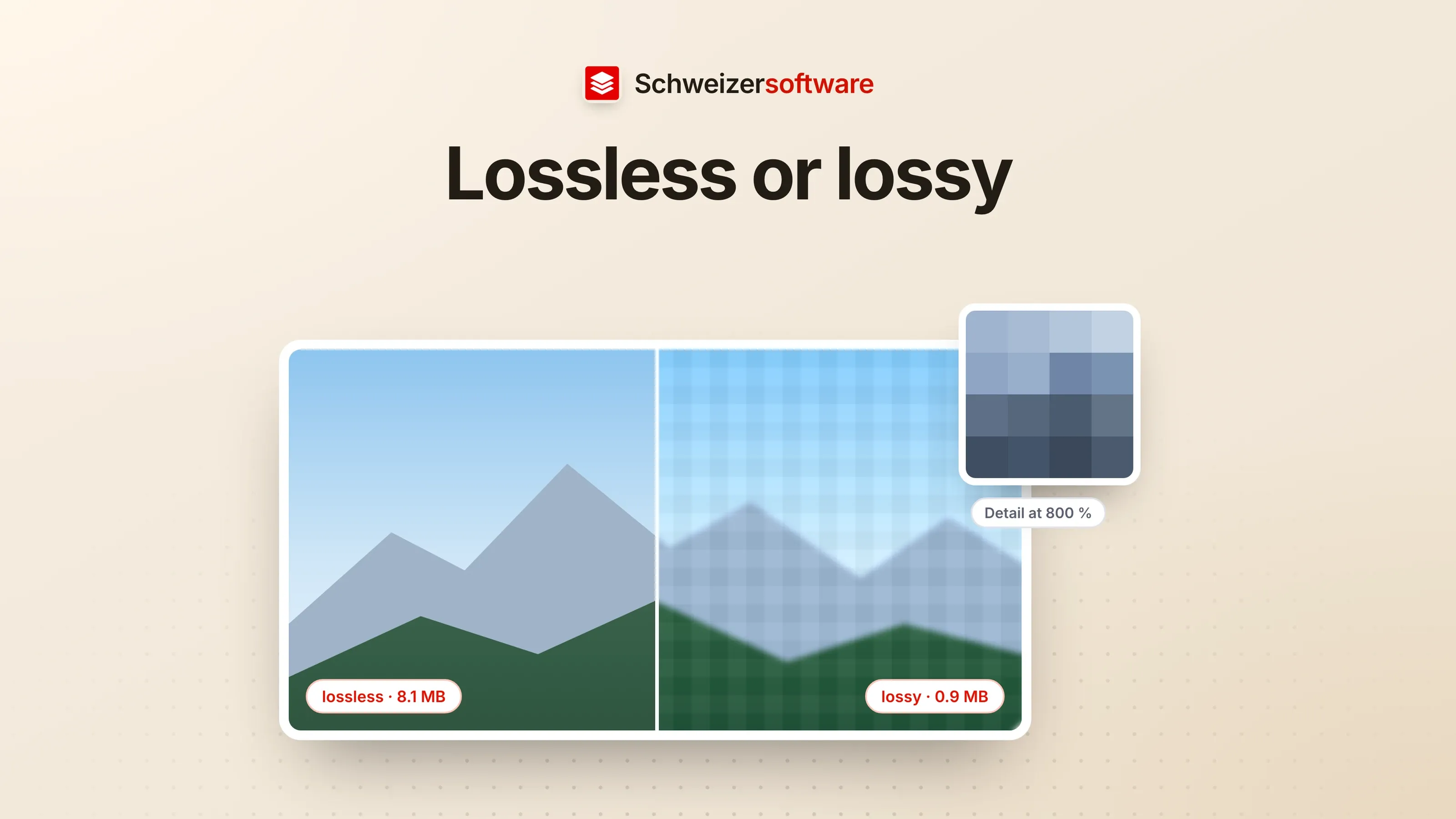
- Lossless. The image is stored in such a way that every pixel can be restored exactly. Space is saved by describing repetition cleverly — an area of a single colour needs less information than a busy one.
- Lossy. The format discards information the eye barely misses. The image looks almost the same but is no longer identical to the original — and is often considerably smaller.
MDN, Mozilla’s developer documentation, classifies the common formats as follows:
| Format | Compression | What MDN describes it for |
|---|---|---|
| JPEG | lossy | Photos and images with soft colour gradients |
| PNG | lossless | Accurate reproduction and transparency |
| GIF | lossless, at most 256 colours | Simple images and animations |
| WebP | lossy or lossless | Images and animations, smaller than PNG or JPEG |
| AVIF | lossy or lossless | Images and animations with high compression |
How JPEG saves space
JPEG is standardised as ITU Recommendation T.81 and is the widespread format for photos. According to MDN, its lossy compression is based on the discrete cosine transform. Put simply: the image is divided into small blocks, and in each block fine details that the eye barely perceives are described more coarsely or left out.
How much is left out is determined by the quality level chosen when saving. There is no single right number; web.dev, an information site by Google for web development, recommends trying several quality levels and looking for the best compromise between quality and file size.
Why text and edges suffer
The logo with the blotchy edges has a simple explanation. Lossy methods are made for soft transitions, such as those found in photos. At hard edges — letters, lines, logos — the losses stand out. MDN puts it this way: in screenshots, diagrams, logos and line drawings, blurring and colour fringes around text and sharp edges are clearly visible; for such images, MDN recommends lossless encoding.
Then there is transparency: JPEG has no alpha channel. A logo meant to stand freely on a coloured background needs a format with transparency, such as PNG, WebP or AVIF — or, for logos and icons that should be sharp at any size, a vector graphic in SVG format.
WebP and AVIF
Newer formats can do both: lossy and lossless. MDN gives figures for comparison: lossy WebP images are on average 25 to 35 percent smaller than JPEG images of similar quality, and lossless WebP images are typically 26 percent smaller than the same images in PNG format. According to MDN, lossy AVIF images are around 50 percent smaller than JPEG images of similar quality.
For raster images on the web, MDN therefore recommends WebP or AVIF first, with PNG or JPEG as a fallback for browsers that do not support these formats. For sharing by email, or for programs that do not know WebP and AVIF, JPEG often remains the safer choice.
Size counts for more than the level
The eight megabytes of the photos come less from poor compression than from their size: a current phone takes pictures several thousand pixels wide. On the website they may appear 1200 pixels wide.
The arithmetic behind it is quadratic. web.dev notes that a screen with double the pixel density needs not twice but four times as many pixels — twice as many in width and twice as many in height. Conversely: an image reduced to half its width has only a quarter of the pixels left. Scaling down to the size actually needed therefore often saves more than any quality level.
Colours and bit depth
Formats also differ in how finely they grade colours. According to MDN, JPEG stores 8 bits per colour component, while PNG can also store 16 bits per component. For a website this is rarely decisive. For images that are still to be heavily edited or printed at high quality, the finer grading can matter — another reason to keep the original in a lossless format or in the camera’s own format.
Checking by eye
Whether a quality level is good enough is shown most reliably by looking at the result at its original size. Two places reveal losses first: edges with strong contrast, such as a window frame against a bright sky, and large, soft gradients such as an evening sky, where banding becomes visible if compression is too strong. If both look good, the level is usually sufficient.
Keeping the original
Lossy compression has a property worth knowing: what has been discarded does not come back. Each time an image is saved again as a JPEG is a new lossy compression, based on an image that has already lost information. Anyone who edits an image several times and saves it as a JPEG each time will see the losses grow.
This leads to a simple way of working: keep the original unchanged and create every reduced or compressed version from the original, not from the latest version.
What else is in the file
Not every byte of an image file is image. Photos from phones and cameras often contain metadata: the date taken, the camera model, sometimes the exact location. For the bed and breakfast’s website, this information is superfluous — and the location of a photo taken in the owner’s private flat does not belong online in any case. It can be removed at the same time as compressing.
Photos from an iPhone
Anyone taking photos with an iPhone often has the originals in HEIC format. Some website programs, however, expect JPG, PNG or WebP. What to bear in mind when converting is described in the post Converting HEIC to JPG.
For the bed and breakfast in Engelberg
The owner goes through the images once: the photos are scaled down to the width at which they appear on the website, doubled for high-density screens, and saved as WebP at a quality level they have tried out on three examples. They get the logo from their graphic designer as an SVG. The originals stay in a folder of their own, and the metadata is removed.
The image tools we are building will compress and resize images and convert between JPG, PNG, WebP and HEIC — processed in Switzerland, in memory, without any image being kept, and in confidential mode entirely on your own device.
Sources
- 1.MDN Web Docs: Image file type and format guide (checked on 25 September 2026)
- 2.web.dev: Choose the right image format (aktualisiert 13. August 2024) (checked on 25 September 2026)
- 3.ITU-T: Recommendation T.81 (JPEG) (checked on 25 September 2026)
Be told when it launches
This idea is still being planned. Sign up and we will write to you once, when it becomes an app. Signing up is non-binding – no newsletter, no advertising.
View the idea