
PDF tools6 min read
Redacting a PDF: why a black box is not enough
A rectangle drawn over text hides it but often does not remove it. What real redaction means, where information hides in a PDF and how to check the result.
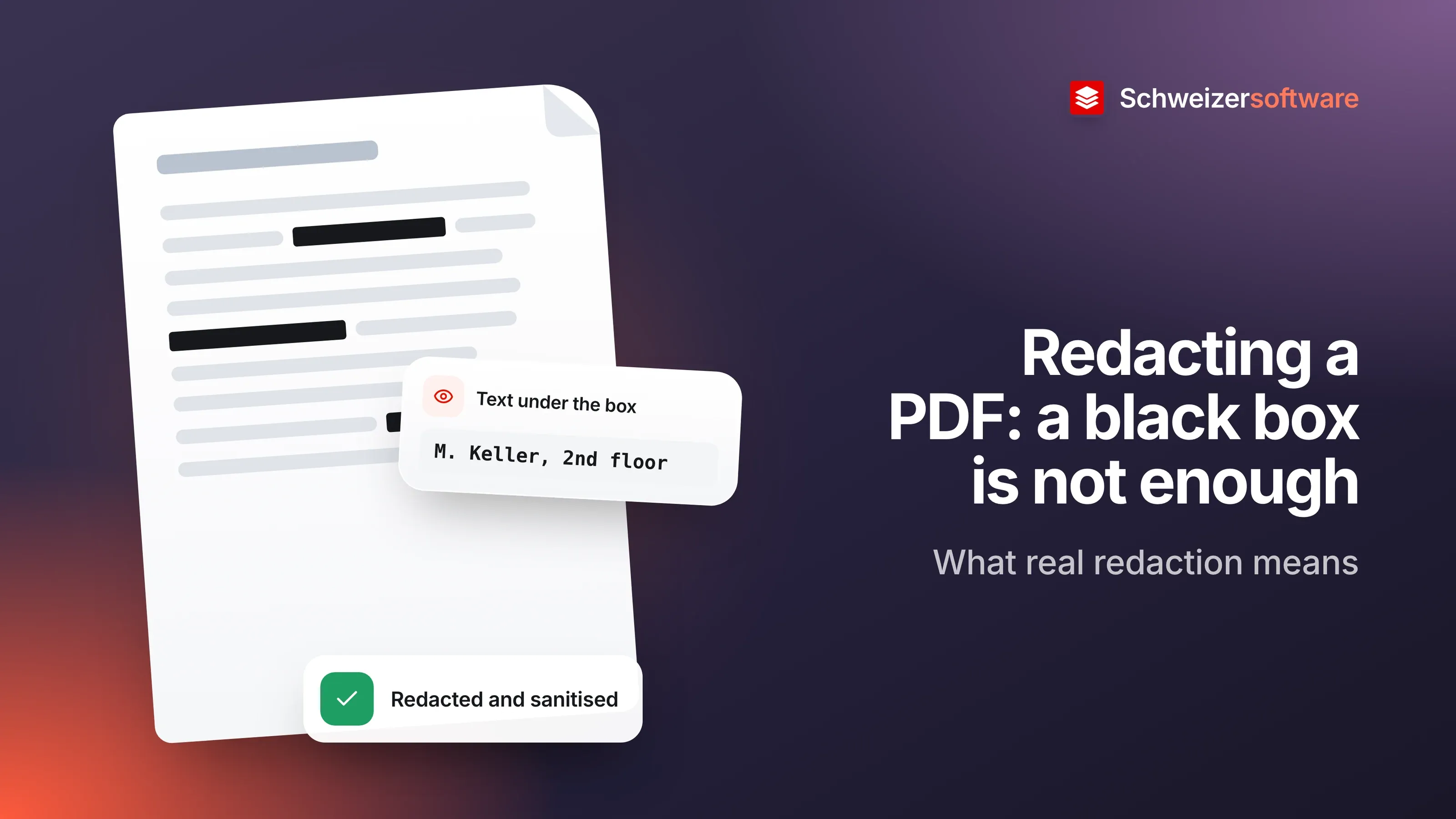
A property management company in Basel receives a complaint about noise in the stairwell. The owner wants to see it. But the letter also contains the names and flat numbers of other tenants, which have no business being there. The administrator opens the PDF, draws black rectangles over the names and sends the file.
On screen it looks flawless. Whether the names are actually gone depends on how the rectangles were made. In many cases they simply sit on top of the text — and the text is still underneath.
Why a box is not enough
A PDF page is made of layers: the actual content and, on top of it, comments, highlights and drawings. A rectangle from the comment or drawing tool belongs to the top layer. It covers the text but does not delete it.
A US court has described this mistake at length in a guidance note on redaction. It cites a case in which black bars lay over confidential passages in a judgment published as a PDF: the bars only obscured the text, they did not erase it, and a simple copy and paste made it readable. The note names a common mistake as covering text with the highlighting tool or a drawing tool; the result is text that is covered up but not removed from the document.
The same applies to text shaded black in a Word document that is then saved as a PDF: the colour changes, the letters remain.
What real redaction means
Programs with a genuine redaction function work differently. Adobe describes redaction in Acrobat Pro like this: redacted content such as text or images is replaced by coloured boxes, so the information cannot be restored or displayed. The difference from a rectangle lies in the word “replaced” — the text is removed from the page content and the box takes its place.
Adobe notes two limitations:
- Permanent. A redaction cannot be undone once applied and saved. That is why redaction belongs on a copy, never the original.
- Visible content only. Redaction removes visible text and graphics. Hidden data such as metadata or embedded content has to be removed separately.
Adobe calls the second step “sanitising”: removing hidden data such as metadata, embedded content, scripts and other non-visible elements. When a redaction is applied in Acrobat Pro, it offers to remove this hidden information at the same time.
Where information hides
What you see on the page is not everything in the file. The US court’s note points out that PDF files can automatically contain some details: the original file name including its path, the login name of the person who created the document, and the creation date. They are visible in the document properties.
Other typical places:
| Place | What it can contain |
|---|---|
| Document properties | Author, title, program, file path, creation date |
| Comments and notes | Remarks someone added while reviewing |
| Bookmarks | Headings that contain names or case numbers |
| Form fields | Entered values, including in hidden fields |
| File attachments | Embedded files, such as the original Word document |
As early as 2005, the US National Security Agency noted in a guide to publishing sanitised documents that merely converting a Word document to PDF does not remove all metadata automatically. Sanitising is therefore not an extra but the second half of the same job.
The simplest route: remove it in the original
The US court’s note names the best and safest way as deleting the text in the original document — not covering it — and then creating the PDF again. That way, the unwanted text never exists in the PDF in the first place.
For the property manager, this means: if the complaint exists as a Word file, the names are replaced there with “[tenant, 2nd floor]”, and only then is the PDF created. If the complaint arrived as a letter and was scanned, it is an image; if the scan went through text recognition, there is also invisible text under the image, and the same applies to it as to any other PDF.
How to check the result
A few steps show whether a redaction holds before the file leaves the office:
- Search. Enter the redacted name in the PDF program’s search. If it finds it, it is still there.
- Select and copy. Select the area of the bar and paste it into a text editor. If text appears, the bar was only laid on top.
- Look at the properties. Check which author, title and path the document properties show.
- Layers and comments. Go through the comment list and bookmarks.
When the name is gone but the person is still recognisable
A clean redaction removes characters. Whether the person can no longer be recognised is another question. The Swiss Data Protection Act defines personal data as any information relating to an identified or identifiable natural person (Art. 5 let. a FADP). A person can be identifiable without a name.
In a building with six flats, “tenant, 2nd floor left” is enough to know who is meant. In a reference letter, the combination of role, start date and department often reveals more than the redacted name. Anyone redacting to protect a person therefore reads the document a second time, asking: could someone who knows the business still recognise the person?
Sometimes the answer is to redact more — the flat number, the date, the department. Sometimes it is not to pass the document on at all, and instead to summarise in your own words what the recipient needs to know.
A routine for the business
In everyday work, redaction rarely happens as planned; it happens just before sending. A fixed routine helps because it puts the same steps in the same order every time:
- Make a copy and name it clearly.
- Where possible, replace in the original document and create the PDF again; otherwise, use a genuine redaction function.
- Sanitise hidden content: properties, comments, attachments.
- Run the check above: search, copy, look at the properties.
- A second person reads the result, asking whether anyone is still recognisable.
It takes a few minutes. A document, once sent, cannot be called back.
Share less, from the start
Behind the technique is a simple question: what does the recipient really need? The Swiss Data Protection Act requires processing to be proportionate (Art. 6 para. 2 FADP), and disclosure to third parties is a form of processing (Art. 5 let. d and e FADP). An extract or a short summary is often a better answer than a redacted complete document.
Where the whole document is to be passed on, careful redaction followed by a check is the reliable route. For the PDF tools we are building, the same principle will apply to every job: the file is processed in Switzerland, in memory, and not stored, and for confidential documents a separate mode will do selected jobs entirely on your own device.
Sources
- 1.Adobe: Über das Schwärzen und Bereinigen von PDFs in Acrobat Pro (checked on 25 September 2026)
- 2.Adobe: Vertraulichen Inhalt in PDFs in Acrobat Pro schwärzen (checked on 25 September 2026)
- 3.U.S. District Court, Eastern District of Tennessee: Redaction Guidance (checked on 25 September 2026)
- 4.Federation of American Scientists: NSA «Redacting with Confidence» (13. Dezember 2005) (checked on 25 September 2026)
- 5.Bundesgesetz über den Datenschutz (DSG, SR 235.1) (checked on 25 September 2026)
Be told when it launches
This idea is still being planned. Sign up and we will write to you once, when it becomes an app. Signing up is non-binding – no newsletter, no advertising.
View the idea