
PDF tools6 min read
Password-protecting a PDF: opening, printing, editing
The difference between the password to open a PDF and its permissions, what PDF encryption achieves, and where its limits lie.
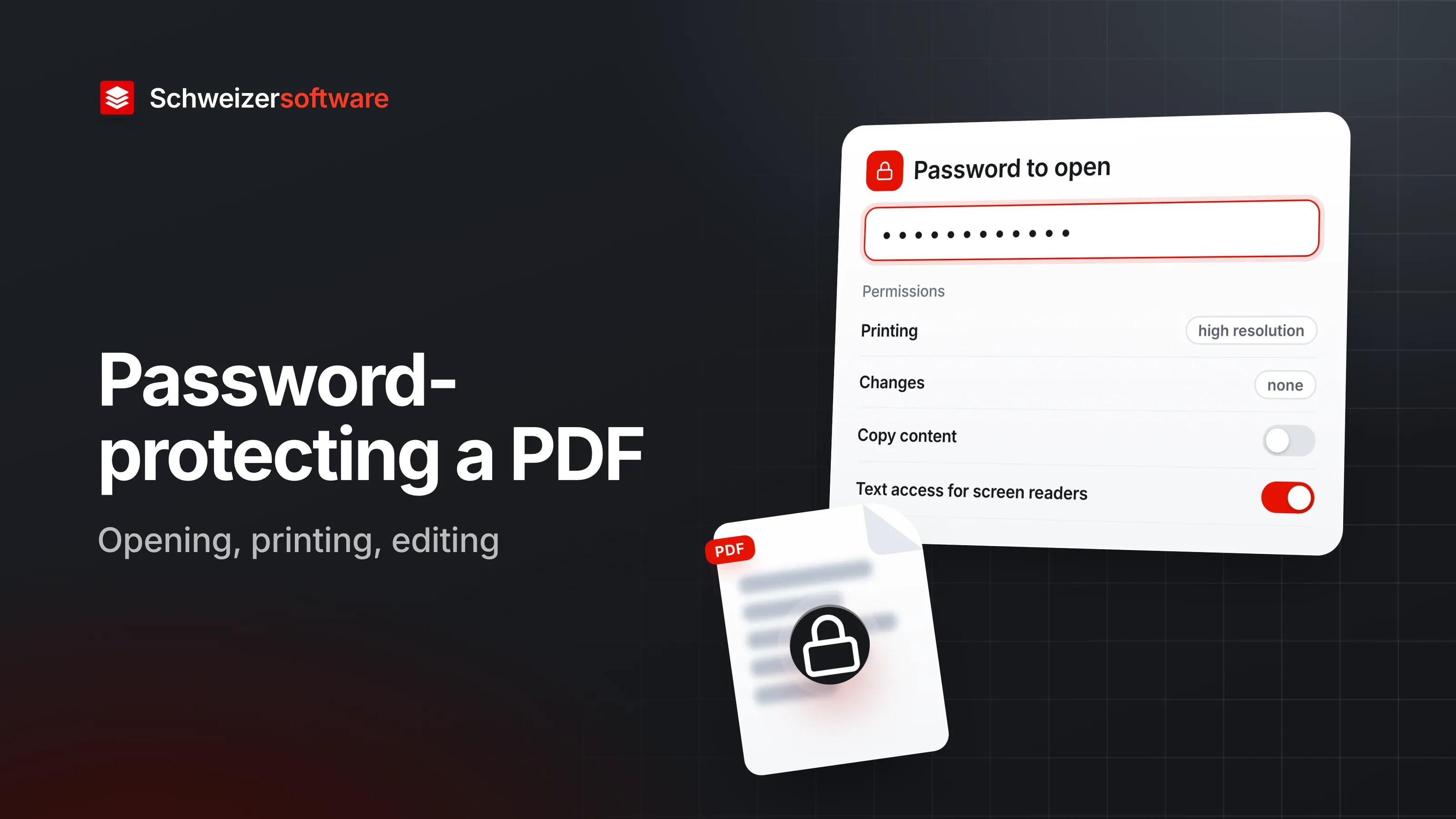
An engineering office in Solothurn sends plans to building contractors and expert reports to clients. For the plans there is one wish: they should be read and printed, but not changed. For the reports another: only the client should be able to open them. Both wishes can be met in a PDF with a password — with two different passwords that work very differently.
Two passwords, two jobs
Adobe distinguishes two kinds of password in Acrobat:
| Password | What it does |
|---|---|
| Document Open password | Without it, the PDF cannot be opened and viewed |
| Permissions password | Restricts features such as printing, editing, copying and commenting |
In the technical description of the format, the two are called the “user password” and the “owner password”. The names give it away: one is needed by whoever wants to use the document; the other by whoever sets the rules.
What the password to open does
With a Document Open password, the content of the PDF is encrypted. Since PDF 1.6, AES, an established encryption method, can be used for this. Without the password, the file stays unreadable, even if it falls into the wrong hands.
How good this protection is depends mainly on the password itself. Adobe recommends strong, unique passwords combining upper- and lower-case letters, numbers and special characters, no easily guessed information such as names or birthdates, and not reusing the same password across many documents.
On the recipient’s side, the reader program asks for the password on opening. The preview in an email program or on a phone, however, often shows nothing of the content. A sentence in the email — “The report is protected with a password, which we will give you by phone” — prevents the file from being taken for broken.
Microsoft Word also offers the option of encrypting the document with a password when saving as PDF; only people with the password can then open the file.
What permissions do — and what they do not
With the permissions password, Acrobat lets you set, among other things:
- Printing: not allowed, low resolution only (up to 150 dpi), or high resolution;
- Changes: none, only inserting, deleting and rotating pages, only filling in form fields and signing, or commenting as well;
- Copying of text, images and other content;
- Text access for screen reader devices for people with visual impairments.
These settings are useful, but they are something other than encryption. Adobe’s PDF Reference states: once a document has been opened and decrypted, the application has access to its entire content. Nothing inherent in PDF encryption enforces the permissions; it is up to the makers of reader programs to respect them.
Do not lock out accessibility
One setting deserves particular attention: text access for screen readers. If copying text is prohibited, depending on the settings a screen reader may no longer be able to read the text aloud either. Adobe therefore lists text access for screen reader devices as a separate option. Anyone protecting a document that people with visual impairments should also be able to read leaves this option switched on.
Which setting for what
For the engineering office, two combinations emerge:
| Document | Password to open | Permissions |
|---|---|---|
| Plans | none | Printing allowed, changes not allowed |
| Expert reports | yes | Printing allowed, text access for screen readers on |
Adobe describes a third combination with the setting that allows only filling in form fields and signing. It suits a form that should be filled in but not redesigned — such as a handover record that the client completes and sends back.
The plans are not about secrecy but about avoiding accidental changes. The report is about confidentiality — that is where the password to open counts.
Passing on the password
An encrypted PDF is of little use if the password is in the same email. Adobe recommends sharing passwords through secure communication channels and storing them in a password manager rather than writing them down or sending them by email. For the engineering office, that means: the report goes by email, the password by text message or phone.
Where personal data is sent, this ties in with a requirement of the Data Protection Ordinance: when personal data is disclosed, unauthorised persons should not be able to read, copy, change or delete it (Art. 3 para. 2 let. c DPO).
Certificates instead of passwords
For documents that regularly go to the same recipients, Adobe describes an alternative: certificate security. The document is encrypted for specific recipients, who open it with their own digital ID. According to Adobe, this allows different access rights for different people or groups, and no password has to be passed on. The price is the setup: both sides need digital IDs, and the recipients need a program that can handle them. For a small office with changing clients, that is often more effort than the matter requires; for a fixed circle of partners it can be worthwhile.
Passwords that can be remembered
A password that is strong and can still be given over the phone is not a given. One option is a passphrase made of several random words: long enough to be hard to guess, and yet easy to dictate. Anyone sending several documents keeps a record in the password manager of which password belongs to which document — Adobe also recommends this rather than writing passwords down.
How a password-protected PDF can be used when sending payslips is described in the post Sending payslips as PDF by email.
Limits
Three limits belong in the picture:
- Forgotten passwords cannot simply be recovered when encryption is effective. An unencrypted original in your own archive therefore makes sense.
- Opened documents can be photographed, copied out or forwarded. The password protects the file in transit, not the content after it has been opened.
- Authenticity is a different question. Whether a document was changed afterwards is shown better by an electronic signature than by a permissions password.
For the engineering office in Solothurn
The office sets up two templates: plans without a password to open, but with permissions that rule out changes; reports with a password to open that is assigned per project and given by phone. The unencrypted originals stay in the project folder.
The PDF tools we are building will merge, split, shrink and edit PDF files — processed in Switzerland, in memory, without any file being kept, and in confidential mode for selected tasks entirely on your own device.
Sources
- 1.Adobe: Password security overview (Acrobat) (checked on 25 September 2026)
- 2.Adobe: Restrict printing, editing, and copying PDFs (Acrobat) (checked on 25 September 2026)
- 3.Adobe: PDF Reference, Sixth Edition (PDF 1.7), Abschnitt 3.5 Encryption (checked on 25 September 2026)
- 4.Microsoft Support: Speichern oder Konvertieren in PDF oder XPS in Office Desktop-Apps (checked on 25 September 2026)
- 5.Datenschutzverordnung (DSV, SR 235.11), Fassung in Kraft seit 15. September 2024 (checked on 25 September 2026)
Be told when it launches
This idea is still being planned. Sign up and we will write to you once, when it becomes an app. Signing up is non-binding – no newsletter, no advertising.
View the idea