
PDF tools6 min read
What a PDF file reveals about you: metadata
Author, program, creation date, earlier versions: which details PDF files can carry, where to see them and how to check them before sending.
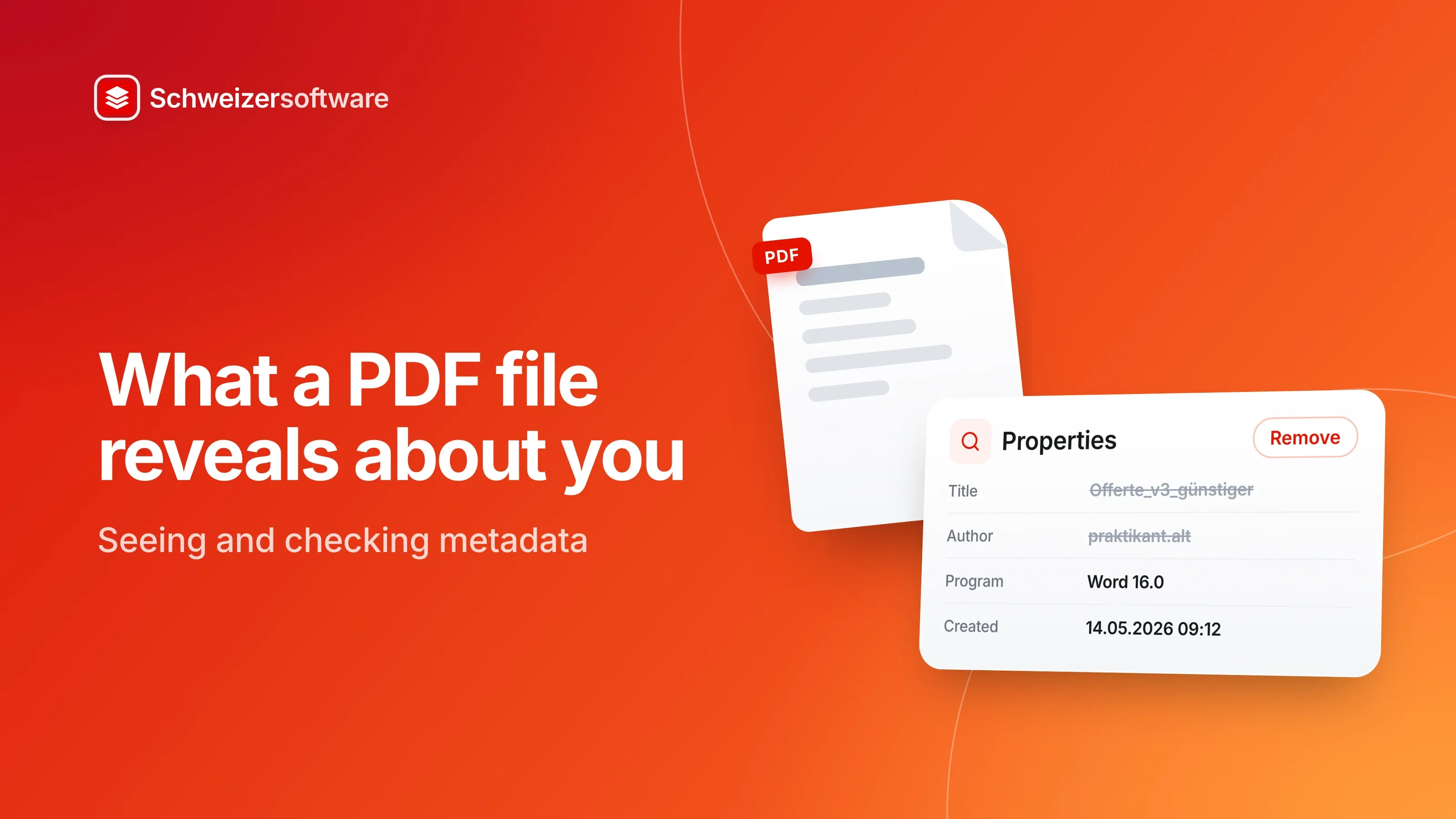
An architecture practice in Chur sends a client a quote as a PDF. The client opens the file, clicks “Properties” out of curiosity and reads: title “Offerte Müller_v3_cheaper”, author an intern who left the practice two years ago, created from a template whose name contains another client. None of it is secret. But none of it was meant for her.
A PDF shows what is on its pages. Beyond that, it carries details about itself — who created it, with what, when, under what name. These details are called metadata, and they travel with every file.
What metadata is
Adobe describes document properties as a set of attributes that describe and categorise a PDF without having to open and read its content. It includes basic information such as title, author, subject and keywords, plus security settings, font information, initial view settings and custom properties.
Metadata goes further: standard fields such as creation and modification date, extended schemas such as Dublin Core and IPTC, and application-specific data. Adobe names XMP, the Extensible Metadata Platform, among the standards used.
Metadata has a purpose: it helps organise and find files. But Adobe also notes that for sensitive documents it may be necessary to remove metadata before sharing.
Where the details come from
Most metadata is not typed in by anyone. It is created along the way.
From the source document. When a Word document is saved as a PDF, Word offers to include the document properties. Microsoft explains that document properties contain details such as author, subject and title, but also information that Office programs manage automatically: the name of the person who last saved the document and the date it was created.
From the system. A US court’s guidance on redaction notes that PDF files can automatically contain some details: the original file name including its path, the login name of the person who created the document, and the creation date.
From editing. Anyone who changes a PDF afterwards leaves traces of another kind — more on that below.
The invisible history of a file
The PDF Association, the industry body behind the format, describes a feature few people know about: incremental updates. Changes to a PDF can be appended to the end of the file as deltas. New objects are added; existing ones are marked as deleted — and remain in the file.
PDF software shows what is left after all the updates. The PDF Association gives an example: one update adds a file, a later one marks it as deleted. A standard PDF viewer then shows no file, even though the object is still in the PDF. This, it says, is highly relevant to redaction and forensics.
For the architecture practice, this means a quote edited three times in a PDF program and saved each time can contain remnants of earlier versions. Anyone who wants to be sure only the final version goes out creates the PDF afresh from the source document rather than continuing to edit the old file.
What happens earlier, in Word
Many PDFs start as Word documents, and some details come from there. In its guide to the Document Inspector, Microsoft lists the hidden data and personal information a Word document can contain:
| Type | Examples according to Microsoft |
|---|---|
| Comments and revisions | Comments, tracked changes, versions, ink annotations |
| Document properties | Author, title, last saved by, template name, user name |
| Headers, footers, watermarks | Information you no longer see while editing |
| Hidden text | Text formatted as hidden |
| Custom XML data | Data not visible in the document |
Word’s Document Inspector finds and removes these details. Microsoft points out two limits: it does not detect text hidden in other ways, such as white text on a white background, nor objects covered by other objects. And it recommends running the inspection on a copy, because removed data cannot always be restored.
When saving as a PDF, you can also choose whether to include the document properties and whether tracked changes appear as markup.
How to check
The simplest check takes a minute:
- Open the PDF and bring up the document properties — in most PDF programs via the File menu. Look at title, author, subject, keywords, program and dates.
- Check whether there are attachments or comments; many programs show them in a sidebar.
- Look at the file name. It is the most visible piece of metadata of all and lands in every inbox.
Three ways to get rid of metadata
Which route fits depends on where the PDF comes from.
Before saving in Word. The Document Inspector removes comments, revisions and personal information in the source document. When saving as a PDF, the option to include document properties can be switched off. This is the cleanest route, because the details never reach the PDF.
In the PDF itself. Programs with a sanitising function remove hidden data from an existing PDF. Adobe describes sanitising in Acrobat Pro as removing metadata, embedded content, scripts and other non-visible elements.
Create it afresh. The US court’s guidance recommends as best practice to print documents to PDF and not to hand out the original Word files. A PDF freshly created from the source document also contains no incremental updates from earlier edits.
After any of the three, a look at the properties shows whether the result is what you expect.
What may usefully stay
Not every detail has to go. A title that describes what the document is helps the recipient file it. An author “Example Architects” is a factual detail. The question is not whether metadata exists, but whether it says what you want it to say.
A small practice can set a simple rule: templates carry neutral properties — the business name as author, no client name in the title — and before anything goes to an outside party, someone glances at the properties. It costs little and keeps a working title like “v3_cheaper” out of the negotiation.
For individuals
Private PDFs carry metadata too: the CV with the author name of the computer it was written on, the rental form with the title of its template. Anyone applying for a job may want to look at the properties of their CV once — the recipient may see them in the window title.
The PDF tools we are building will process files in Switzerland, in memory, and not store them. Merging, splitting and converting each create a new file — a good moment to ask which details that file should carry.
Sources
- 1.Adobe: Überblick über Dokumenteigenschaften und Metadaten in Acrobat (checked on 25 September 2026)
- 2.Microsoft Support: Entfernen von ausgeblendeten Daten und persönlichen Informationen durch Prüfen von Dokumenten (checked on 25 September 2026)
- 3.Microsoft Support: Speichern oder Konvertieren in PDF oder XPS in Office Desktop-Apps (checked on 25 September 2026)
- 4.Adobe: Über das Schwärzen und Bereinigen von PDFs in Acrobat Pro (checked on 25 September 2026)
- 5.PDF Association: Files inside PDF (checked on 25 September 2026)
- 6.U.S. District Court, Eastern District of Tennessee: Redaction Guidance (checked on 25 September 2026)
Be told when it launches
This idea is still being planned. Sign up and we will write to you once, when it becomes an app. Signing up is non-binding – no newsletter, no advertising.
View the idea