
PDF tools5 min read
Processing in the browser: what “local” means for web apps
How a web app can work on files directly in the browser without uploading them, where the limits are, and how to check for yourself whether anything is sent.
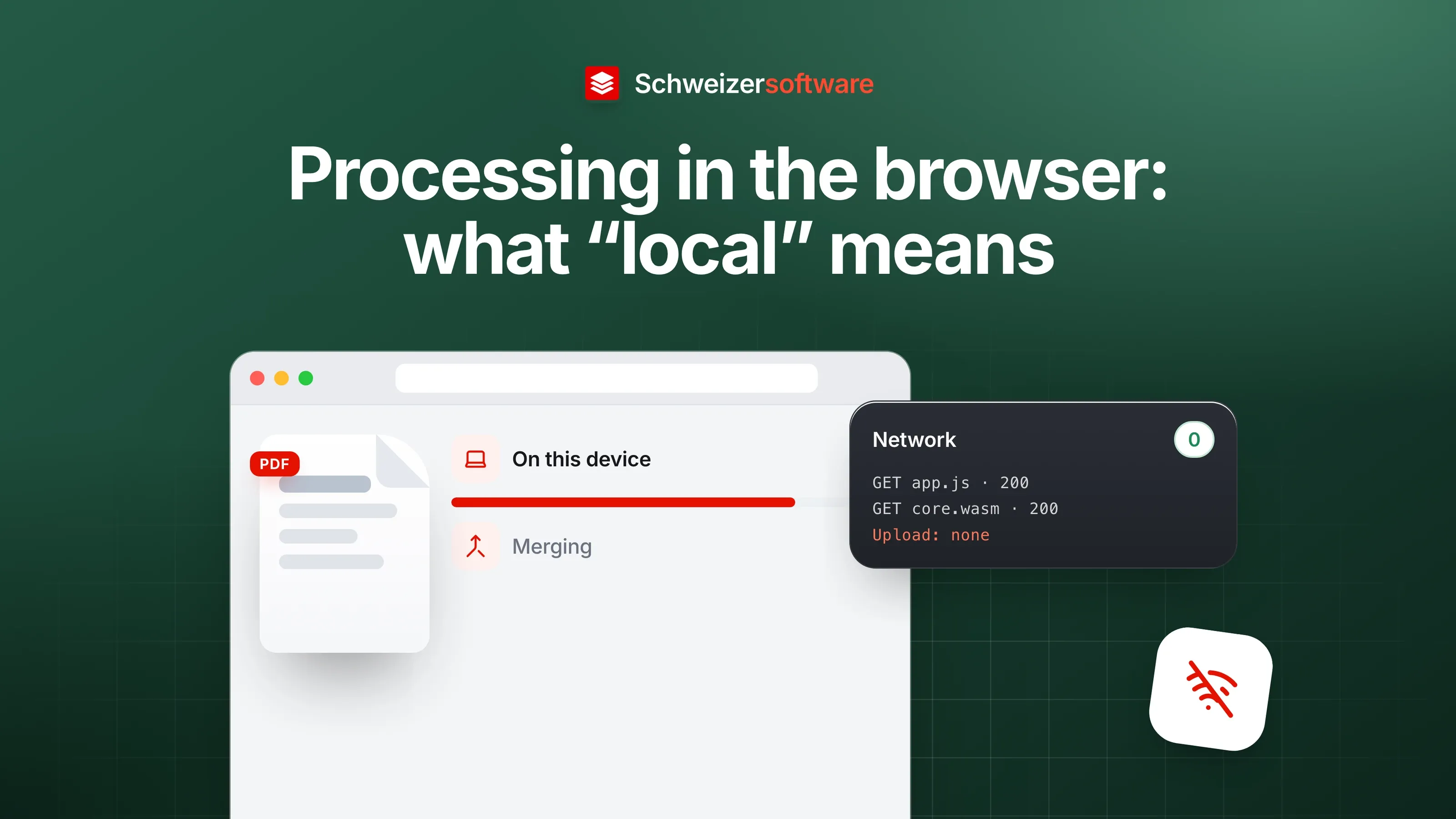
An HR manager in Aarau is to put together a file for management from five job applications. CVs, references, diplomas — all PDFs, all with names, dates of birth and addresses. She finds a web app that promises to merge files “locally in the browser”. What does that mean, and how can she check it?
“Local” is a word found on many websites. It describes a real technical approach that works well. It is worth understanding what lies behind it — because then you can also verify it.
Two ways a web app works on a file
On the server. The file is uploaded, a provider’s computer processes it and the result comes back. This is the usual approach, and it has advantages: the server is often more powerful than your own device, and some conversions need programs that are not available in the browser. The file leaves your device, and what happens to it depends on the provider.
In the browser. The web app loads its program code into the browser, and the work happens there, on your own device. The file is opened, processed and saved as a result without being transferred. The server supplies the tool, not the workshop.
Both approaches can be implemented carefully or carelessly. The difference is where the file is while the work is done.
How a browser can read files
That a website can read a file on your computer sounds at first like something that should not happen. The basis is the File API, a W3C standard. MDN describes it like this: with the File API, web content can ask the user to select local files and then read the contents of those files. The selection happens through a file picker or by drag and drop.
The word that matters is “ask”. A website cannot access files on its own; it only gets what the person selects or drags into the window. What the website then does with the contents — process them in the browser or send them to a server — is decided by its code.
Why this now works for heavy jobs too
For a long time, the browser was too slow for demanding work. WebAssembly changed that. MDN describes WebAssembly as a low-level, assembly-like language that delivers near-native performance for the web and serves as a compilation target for languages such as C/C++, C# and Rust, so that high-performance code can run directly in the browser.
In practice, libraries that merge or split PDFs or convert images can be compiled so that they run in the browser. What used to need a server can now happen on an ordinary laptop.
What happens on the first visit
Even a web app that works in the browser downloads something: its own program code. On the first visit, the browser fetches the page, the scripts and, where used, the WebAssembly modules from the server. That is the toolbox, and it is the same for every user. Your own file is not part of it.
This distinction matters when you later look at network activity: loading the page creates requests, which is normal. What is revealing is what happens once the file is selected and processed.
Where the limits are
Processing in the browser is not the right choice for every job.
| Aspect | In the browser | On the server |
|---|---|---|
| Where the file is | On your own device | Transferred |
| Performance | Depends on your device | Depends on the server |
| Very large files | Can push an older device to its limits | Usually no problem |
| Range of functions | Limited to what can run in a browser | Also programs that only run on servers |
| Verifiable | With the browser’s developer tools | Only through the provider’s statements |
That is why some applications offer both: processing in the browser for the jobs that run reliably there, and on the server for the rest.
How to check for yourself
The last row of the table is the most interesting. Whether a file is transferred can be checked with tools built into every common browser. Google describes the Network panel of Chrome’s developer tools as logging all requests a page makes, and recommends it when you need to make sure resources are downloaded or uploaded as expected.
Roughly, it works like this:
- Open the web app and bring up the browser’s developer tools (F12 in Chrome and Edge; in Safari after enabling the Develop menu).
- Choose the Network tab.
- Process a file in the app.
- Check whether requests roughly the size of the file appear during processing.
A simpler test: load the page, then disconnect from the internet and start processing. If it still works, it happens on the device.
For individuals too
The same questions arise in private life, often with documents that reveal more about a person than an application: the ID copy and debt enforcement extract for a flat application, the medical report for the insurer, tax receipts. Anyone who wants to merge or shrink such files can use the same two tests — look at the network, disconnect — to find out whether a tool does what it promises.
And where a job is only possible on a server, the questions of place and duration remain: in which country is the server, and how long does the file stay there? The answers, if any, are in each service’s terms.
For the HR manager in Aarau
For the application file, three questions follow that she can ask of any web app: where does the processing happen? Is the file transferred, and if so, where to and for how long? And can either be observed for yourself?
The PDF tools we are building will combine both approaches. Processing on the server will take place in Switzerland, in memory and without any file being kept. For selected jobs such as merging, splitting or arranging pages, a confidential mode will move the work entirely into the browser — in a way you can verify with the developer tools yourself.
Sources
- 1.MDN: Verwenden von Dateien aus Webanwendungen (checked on 25 September 2026)
- 2.MDN: WebAssembly (checked on 25 September 2026)
- 3.W3C: File API (checked on 25 September 2026)
- 4.Chrome for Developers: Inspect network activity (checked on 25 September 2026)
Be told when it launches
This idea is still being planned. Sign up and we will write to you once, when it becomes an app. Signing up is non-binding – no newsletter, no advertising.
View the idea