
PDF tools5 min read
Compressing a PDF: what really makes a file smaller
What a PDF is made of and what happens when it is compressed: shrinking images, embedding or leaving out fonts, removing clutter, keeping what matters.
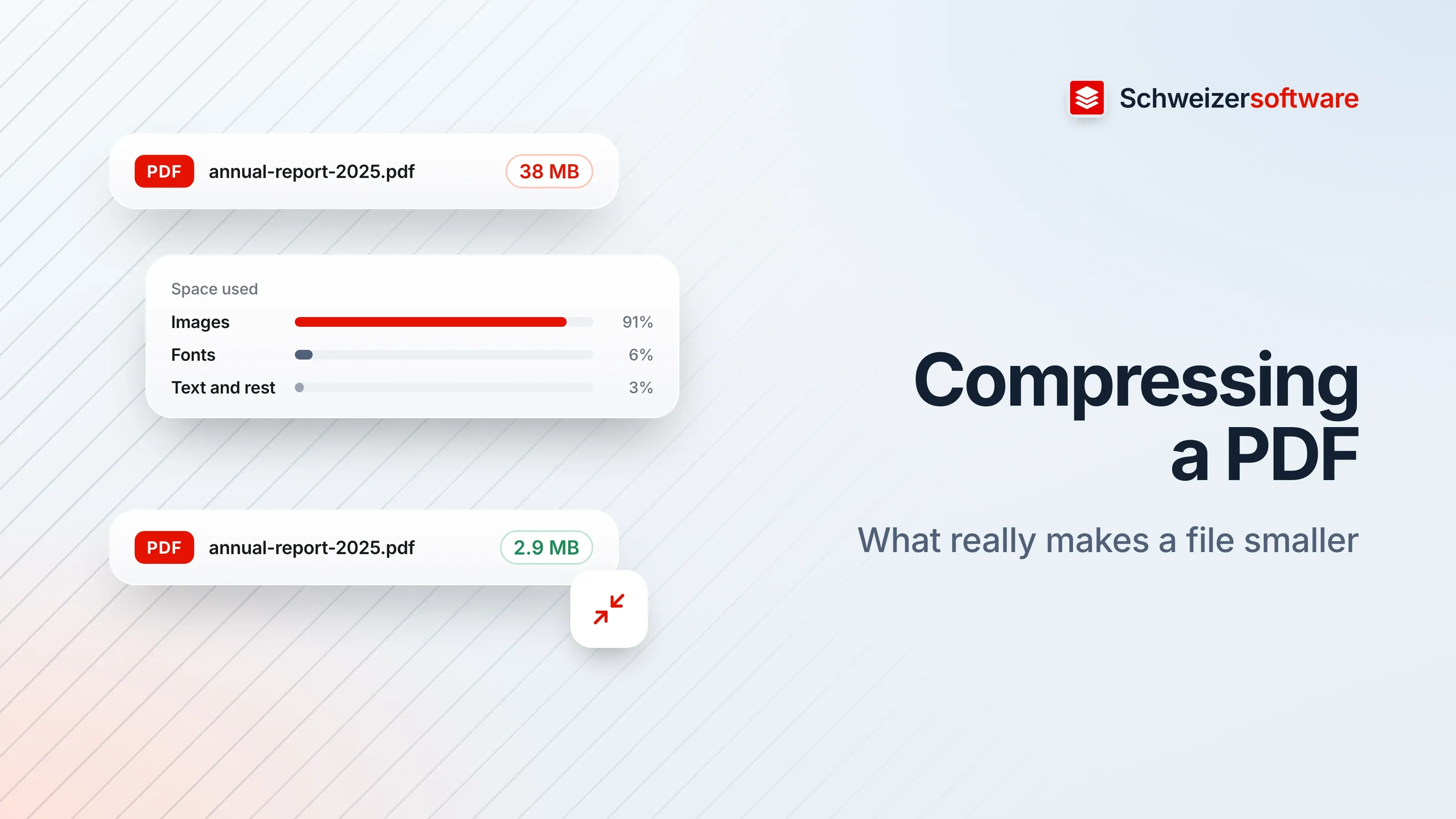
A daycare centre in Uster sends its annual report to parents, the municipality and the board of trustees every year. It has turned out well: twenty pages, lots of photos from the forest day and the summer party, a chart of occupancy figures. Only the file is 38 megabytes, and the email to the municipality bounces back as undeliverable.
“Compressing” sounds like a single button. In fact, it covers several different interventions, and not every one suits every document.
What a PDF is made of
A PDF is a container for different things: text, fonts, images, drawn graphics, form fields, comments, plus information about the document itself. Each of these elements takes up space. Adobe describes a feature in Acrobat that shows how much space text, images, fonts, forms and comments each take up — in bytes and as a share of the whole file. This shows where trimming is worthwhile.
For the daycare centre’s annual report, the answer is predictable: almost all the space goes to the photos.
Images: downsampling and compression
For images, Adobe describes two settings:
- Downsampling. The resolution of an image is reduced by combining the colours of several original pixels into larger pixels.
- Compression. Unnecessary image data is removed. According to Adobe, JPEG and JPEG2000 are better suited to images with smooth colour transitions, ZIP to illustrations with areas of flat colour.
Adobe points out explicitly that the quality setting for JPEG and JPEG2000 removes image data permanently. What is lost during compression cannot be recovered later.
A photo from the forest day printed eight centimetres wide in the report does not need the camera’s full resolution. Brought down to a resolution that looks good on screen and on the office printer, it shrinks to a fraction of its size.
Fonts: embedding, subsetting, leaving out
Fonts are the second big setting, especially for documents without many images. Adobe describes three options:
| Option | What happens | Consequence |
|---|---|---|
| Embed the whole font | The font travels in the PDF in full | The document looks the same everywhere |
| Embed a subset | Only the characters actually used are included | Same appearance, smaller file |
| Do not embed | The font is missing from the PDF | A substitute font if it is missing on the other device |
Adobe states that embedding prevents a substitute font from being used when the file is opened. Leaving fonts out saves space, but accepts that the document may look different elsewhere — with different line breaks and, at worst, with characters that are not displayed.
Transparency and compatibility
Adobe names two further settings in Acrobat’s optimisation dialog. If a PDF contains graphics with transparency, these effects can be “flattened”, that is, converted into simpler areas, which can make the file smaller. And on the question of which Acrobat version the result should be compatible with, Adobe points out that choosing an older version can limit the compression options.
Removing clutter
Adobe names other elements that can be removed: embedded page thumbnails, search indexes, comments, multimedia and private data. Some of these nobody needs in the document being sent, such as comments from the revision. Others they do — once form fields have been “flattened”, they can no longer be filled in.
Metadata such as the author, earlier titles or the program used also belong to these things. They do not make the file large, but they sometimes reveal more than intended. More on this in the post PDF metadata.
What should not be lost
Compressing is not always harmless. A few things deserve a second look:
- Text stays text. Some tools convert entire pages into images when compressing. The file is then smaller, but no longer searchable, and a screen reader can no longer read it out. How an accessible PDF is built is covered in the post Accessible PDF documents.
- QR codes stay readable. A QR-bill has precise specifications for its code, which is scaled as a vector graphic. A tool that converts it into a blurred image puts the payment at risk. More on this in the post The QR-bill as a PDF.
- Signatures. An advanced electronic signature is linked to the document in such a way that any subsequent change can be detected (Art. 2 let. b no. 4 ESigA). A signed PDF that is compressed afterwards is a changed document — and checking the signature shows it.
Scanned documents
Scans are a special case. In a PDF, a scanned page is an image, even if it shows text. Here it helps a lot to choose a suitable resolution when scanning and, where no colour is needed, greyscale or black and white. A colour scan at high resolution is usually larger than necessary for a copy of an invoice.
If it is still too large
Sometimes a document is still too large for an email even after compression — a catalogue with a hundred pages, a building plan in high resolution. Then there are other routes: splitting the document into several parts that are sent separately, or sending only the pages the recipient actually needs. A report to the municipality does not necessarily have to contain the whole photo gallery; a reference to the printed version may be enough.
Keeping the original
As with photos: what is lost in lossy compression does not come back. That is why the original is kept, and every smaller version — for email, for the website, for the archive — is made from the original, not from a version that has already been compressed.
For the daycare centre in Uster
The daycare centre first looks at what takes up space: it is the photos. They are brought down to a resolution that looks good on screen and on the office printer, and compressed as JPEG; the chart of occupancy figures stays a vector graphic, and the fonts are embedded as a subset. What remains is just under three megabytes. The original with the full-size photos stays for the print shop.
The PDF tools we are building will compress, merge and split PDF files — processed in Switzerland, in memory, without any file being kept, and in confidential mode for selected tasks entirely on your own device.
Sources
- 1.Adobe: Reduce PDF file size (Acrobat, zuletzt aktualisiert 23. September 2025) (checked on 25 September 2026)
- 2.Adobe: PDF optimizer settings (Acrobat) (checked on 25 September 2026)
- 3.Adobe: View storage space used by different elements in PDFs (Acrobat) (checked on 25 September 2026)
- 4.Adobe: Embedding fonts in PDFs overview (Acrobat Distiller) (checked on 25 September 2026)
- 5.Bundesgesetz über die elektronische Signatur (ZertES, SR 943.03), namentlich Art. 2 (checked on 25 September 2026)
Be told when it launches
This idea is still being planned. Sign up and we will write to you once, when it becomes an app. Signing up is non-binding – no newsletter, no advertising.
View the idea